



Workflow SAPThrough document approval workflows, a replacement or substitute person can be put in place for a specified time.
Life within an organization inevitably brings unexpected "inconveniences" where people have to be absent from their jobs for whatever reason (illness, vacation, etc.), yet the wheels must keep turning. To address this, SAP, through its document approval workflows, allows for the assignment of a replacement or substitute for a specific period.
For goods receipt (SAP movement 105) or rejection, the SAP workflow system will continue to be used (a message is sent to the workstation, giving us the option to accept or reject the quantity delivered for each purchase order item). However, sometimes the requesting user is on leave, on vacation, or simply wasn't the workshop's primary administrator and has returned to their position.
To prevent the SAP workflow from "not reaching" the workshop on these occasions, we propose establishing one or more substitutes so that when goods arrive, they can be received by someone.
Access to SAP SBWP Transaction:
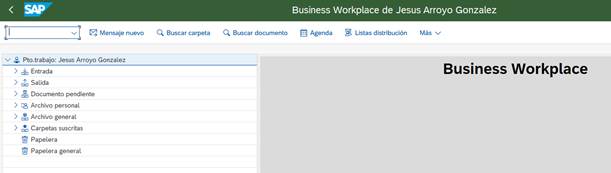
To do this, either from the SBWP transaction or through the menu:
Office -> Workstation
We follow the steps described in the image:
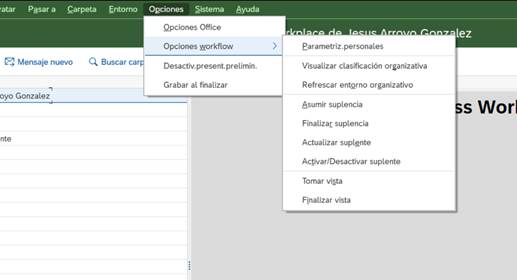
Options -> SAP workflow options -> Activate alternate
And this screen will appear:
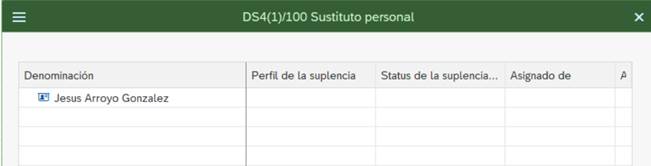
We have the following options:

ADD SUBSTITUTE: If I position the cursor over my user and press the button, it adds a substitute to receive, on the dates I specify and at the same time as me, the SAP workflow messages intended for me.
I enter the search concept and select the user I want to be the substitute:
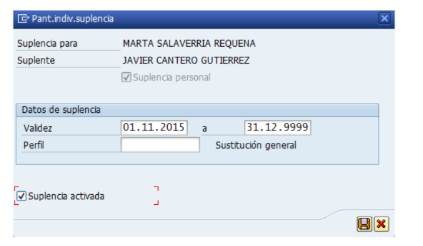
We enter the validity period and check "Replacement activated". Then we press Save.
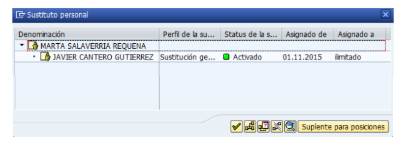
DELETE SUBSTITUTE: If I position the cursor over the substitute I want to delete and press the button, the substitute will cease to be a substitute.
DEACTIVATE SUBSTITUTE: If I think that at some other time I will want to put a
If the user is listed as a substitute again, it is not necessary to delete them, but simply deactivate them as a substitute.
To do this, I click on the substitute and press the button:
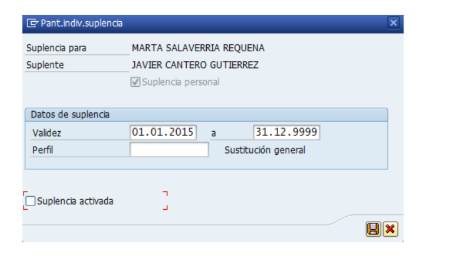
I simply uncheck the "Substitution enabled" box and press the record button. .
With the display variations, we have modified the appearance of the screen to see at all times who the user receiving the workflow message is.
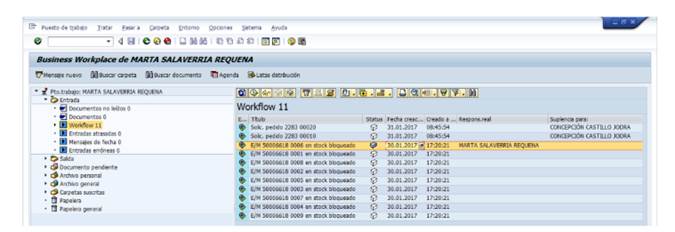
When we open a workflow document, the system interprets that we take responsibility for it (whether it's our original document or we're acting as someone's substitute). If one user is acting as a substitute for another, and vice versa, there's no problem.,
We will always see pending documents even if our substitute has opened and closed them without taking any action. If the substitution were not reciprocal, by taking responsibility for a document, we would cause it to disappear from the original "owner's" view.