



A “display” (or display variant, or layout) in SAP is simply the way in which we can view certain information.
SELECTION VARIANTS IN SAP (PROVISIONS)
The way to record, modify, or view a given arrangement is the same in any of the transactions or selection reports in SAP.
This functionality is available in certain transactions as well as in most listings. We will provide an example for each:
Functionality in a transaction
In this example, using the purchase requisition creation transaction, the goal is to arrange the important fields in a specific order. If no arrangement is selected, these are the fields you would see when accessing the transaction:
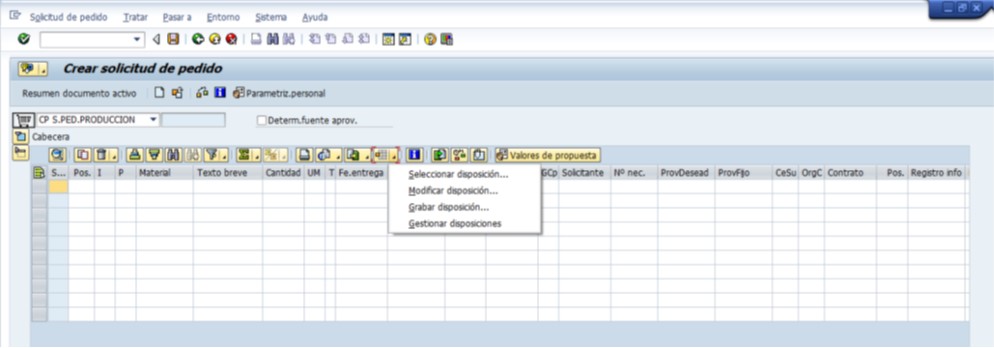
Clicking on the button marked in the image above (it's the same for any transaction) shows us the operations we can perform.
SELECTION IN SAP, DISPOSITION: It will show us a list of pre-created layouts, and we can select any of them. The display of fields on the initial screen will change according to the selected option. In this case, we choose /VALUES, which is the one that best suits our needs.
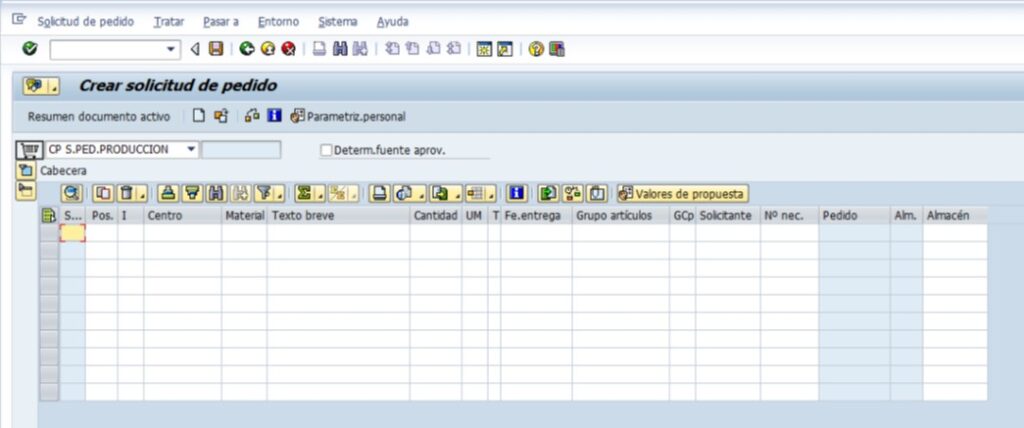
MODIFY PROVISION: It will show us a screen divided into two columns:
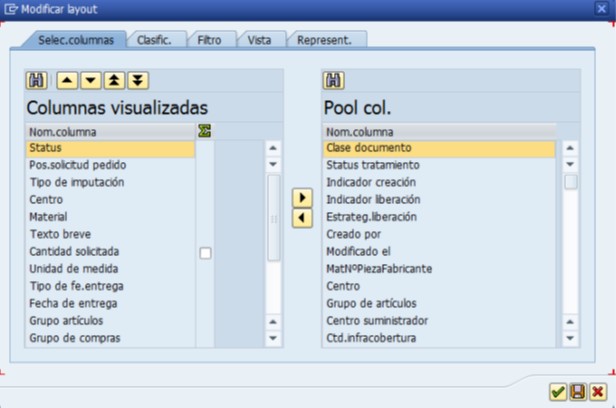
On the left are the fields that are visible in the variant, and on the right are the fields we can select. Simply select the field you want to add or remove and click the appropriate button to move it to the left or right.
The fields on the left will appear in the transaction in the same order as they appear on this screen. To change this order, simply select the field you want to move and click the up or down button until it is in the desired position.
Once the modifications are made, we press the button. This applies the selected fields to our layout, but only until we exit the transaction. If we want to save the change so that it appears every time we select that layout, we have to press the button. Engrave or access later to Record layout.
RECORD DISPOSITION: It will show us a screen with the existing variants. There are variants visible to all users (those that begin with the symbol). / ) that should not be modified, and others that are specific only to the user who created them:
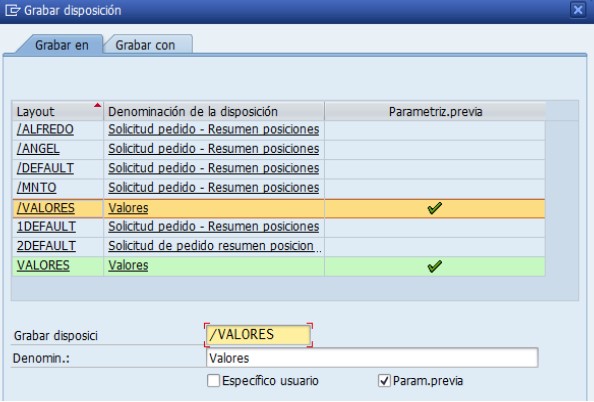
The layout we had selected before making the changes is now marked. In this case, since it's a variant that all users can see, we won't overwrite it, but instead we'll change its name and select the "User-specific" option.
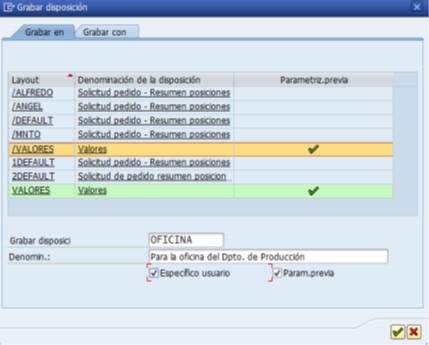
We press the button  and the arrangement will be recorded with the established name and fields:
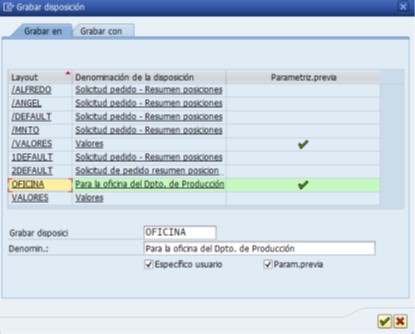
MANAGE PROVISIONS: From here we can modify and/or delete any layout, both those we have created ourselves (User Layout) and those that are common to all users (Standard Layout):
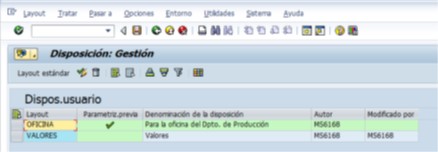
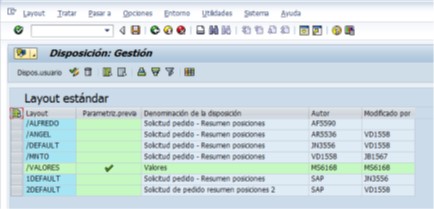
We select the variant we want to treat and press Delete if we want to delete it or if we want to modify the shape or information shown on this screen.
Before exiting, we will need to press Record so that the changes are saved.
Conclusion
The selection settings in SAP are a key tool for adapting the display of information to the needs of each user, allowing for more efficient and organized work.
Through the variants, it is possible to select, order and save the relevant fields in each transaction or report, facilitating access to the truly useful information and avoiding unnecessary distractions.
Furthermore, its management —whether by creating your own provisions or using standard variants— allows you to personalize the SAP experience without affecting other users, providing flexibility and control on a daily basis.
Ultimately, mastering the use of layouts is not just a technical matter, but a way to optimize work and increase productivity within the SAP system.